

Перейти к содержанию
View in the app

A better way to browse. Learn more.

WC3.Info

A full-screen app on your home screen with push notifications, badges and more.

To install this app on iOS and iPadOS
  1. Tap the Share icon in Safari
  2. Scroll the menu and tap Add to Home Screen.
  3. Tap Add in the top-right corner.
To install this app on Android
  1. Tap the 3-dot menu (⋮) in the top-right corner of the browser.
  2. Tap Add to Home screen or Install app.
  3. Confirm by tapping Install.

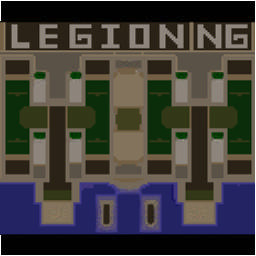
[WC3] Legion TD x20 NG #6291

  • Завершение
  • 02:40 Продолжительность
  1. West Legion

    1. Silent_Wrath

      Iccup
      Вышел по окончанию игры
    2. bandida

      Iccup
      Вышел по окончанию игры
    3. govorilka.

      Iccup
      Вышел по окончанию игры
    4. MHE.CTPAIIIH0

      Iccup
      вышел из игры ДОБРОВОЛЬНО
  2. East Legion

    1. LegionGiz

      Iccup
      Вышел по окончанию игры
    2. TDx20NG

      WC3.Info
      Вышел по окончанию игры
    3. Noob_Team-Grey

      Iccup
      Вышел по окончанию игры
    4. ePSXe

      WC3.Info
      вышел из игры ДОБРОВОЛЬНО

Чат в лобби

  1. ePSXe !sc
    • 04:11
  2. LegionGiz !sc
    • 04:17
    • 05:28
    • 05:30
  3. ePSXe !sc
    • 06:03
  4. ePSXe !as
    • 06:07
  5. ePSXe !open 6
    • 06:12
  6. ePSXe !open 6
    • 06:19
  7. ePSXe !open 6
    • 06:37
  8. ePSXe !as 8
    • 07:39

Чат в игре

  1. Noob_Team-Grey -zoom 200
    • 00:00
  2. ePSXe -zoom 230
    • 00:02
  3. Silent_Wrath -zoom 227
    • 00:06
  4. TDx20NG -cls
    • 00:09
  5. LegionGiz -zoom 200
    • 00:19
  6. TDx20NG -cls
    • 00:21
  7. bandida afk
    • 00:52
  8. bandida afk
    • 01:22
  9. ePSXe кто?
    • 01:28
  10. bandida afk 4
    • 01:30
  11. Noob_Team-Grey фиол отзовись
    • 01:43
    • 02:02
  12. ePSXe !ban MHE afk
    • 02:20
  13. ePSXe !rmk
    • 02:27
  14. LegionGiz !rmk
    • 02:31
  15. ePSXe uj ht
    • 02:32
    • 02:34
  16. govorilka. !rmk
    • 02:35
  17. TDx20NG !rmk
    • 02:35
  18. bandida !rmk
    • 02:36
  19. ePSXe го ре
    • 02:37

Account

Navigation

Поиск

Поиск

Configure browser push notifications

Chrome (Android)
  1. Tap the lock icon next to the address bar.
  2. Tap Permissions → Notifications.
  3. Adjust your preference.
Chrome (Desktop)
  1. Click the padlock icon in the address bar.
  2. Select Site settings.
  3. Find Notifications and adjust your preference.